Showing posts with label Secure. Show all posts

Monday, 25 March 2013

How to Secure Your Teamviewer ?


Hi all users, as y'all know that Teamviewer is a great program to communicate remotely , it's the standard for businesses, clients, and for helping that occasional technologically challenged person with their computer. Unfortunately, the developers of Teamviewer have enabled some sketchy functions by default, namely disabling remote mouse and keyboard, transferring files (without consent), controlling the printer, etc.

Rather than being opt-in, these features are now opt-out. Right now, if you have not altered Teamviewer in any way, somebody can connect, (provided you give them details) disable your mouse and keyboard, black your screen, and do all sorts of heinous, sketchy stuff to your computer. Fortunately, they do provide a way to disable or limit these functions, and that's what this tutorial will show.

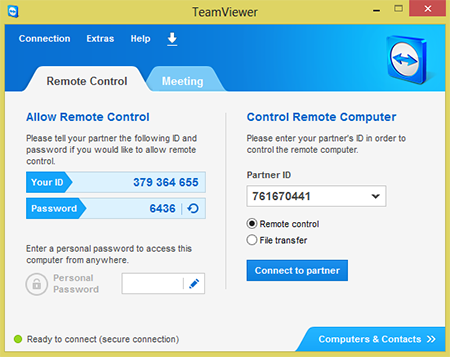
1. First of all open Teamviewer. (It can be downloaded HERE if you do not have it yet.) It should display like this :

2. Now navigate to "Extras" at the top, then to "Options".


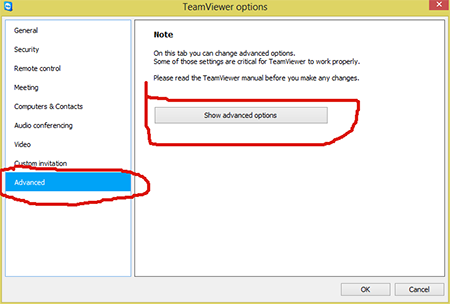
4. Next, navigate to the "Advanced" tab then to "Show Advanced Options", and click on it:
 

5. Now Scroll down to "Advanced Settings for connections to this computer", in the Drop Box, it should be set to "Full Control", set it instead to "Custom Settings", and then click "Configure".


6.  Set your settings to your taste. My own settings can be found in this image:


7. After you have done that, click "OK", then "OK" once more. Congratulations, you have successfully secured your Teamviewer. Enjoy the reduced risk of somebody screwing you over.

Enjoy.......

Read more ...

Friday, 26 October 2012

Security Enhancements For Secure Our Data

 1. 

Check Windows Update and Office Update regularly (http://office.microsoft.com/productupdates); have your Office CD ready. Windows Me, 2000, and XP users can configure automatic updates. Click on the Automatic Updates tab in the System control panel and choose the appropriate options.

2. Install a personal firewall. Both SyGate (www.sygate.com) and ZoneAlarm (www.zonelabs.com) offer free versions.

3. Install a free spyware blocker. Our Editors' Choice ("Spyware," April 22) was SpyBot Search & Destroy (http://security.kolla.de). SpyBot is also paranoid and ruthless in hunting out tracking cookies.

4. Block pop-up spam messages in Windows NT, 2000, or XP by disabling the Windows Messenger service (this is unrelated to the instant messaging program). Open Control Panel | Administrative Tools | Services and you'll see Messenger. Right-click and go to Properties. Set Start-up Type to Disabled and press the Stop button. Bye-bye, spam pop-ups! Any good firewall will also stop them.

5. Use strong passwords and change them periodically. Passwords should have at least seven characters; use letters and numbers and have at least one symbol. A decent example would be f8izKro@l. This will make it much harder for anyone to gain access to your accounts.

6. If you're using Outlook or Outlook Express, use the current version or one with the Outlook Security Update installed. The update and current versions patch numerous vulnerabilities.

7. Buy antivirus software and keep it up to date. If you're not willing to pay, try Grisoft AVG Free Edition (Grisoft Inc., www.grisoft.com). And doublecheck your AV with the free, online-only scanners available at www.pandasoftware.com/activescan and http://housecall.trendmicro.com.
8. If you have a wireless network, turn on the security features: Use MAC filtering, turn off SSID broadcast, and even use WEP with the biggest key you can get. For more, check out our wireless section or see the expanded coverage in Your Unwired World in our next issue.

9. Join a respectable e-mail security list, such as the one found at our own Security Supersite at http://security.ziffdavis.com, so that you learn about emerging threats quickly and can take proper precautions.

10. Be skeptical of things on the Internet. Don't assume that e-mail "From:" a particular person is actually from that person until you have further reason to believe it's that person. Don't assume that an attachment is what it says it is. Don't give out your password to anyone, even if that person claims to be from "support." 

Read more ...

Tuesday, 23 October 2012

How to Secure Facebook Account from Hacking ?


Every Day thousands of Facebook Accounts are Hacked by various means. Most Popularly by Phishing. But as a internet user how can we defend our self, I am going to inform you people about a Facebook feature which not so many people know about.

All you have to do it to follow the following steps and then your Account will be protected by SMS Security code configuration. It means that when someone will log into your account from any other computer a SMS will be send to you with Security Code that you will have to give to log in. Like this No one can log into your account even if they have your password.

STEP 1: Goto your Account | Account Settings .

STEP 2: Now Under “Account Security” section , Tick “Login Approval” .

 Step 3: Click on “Set Up Now” .


 STEP 4: Now give the “confirmation code” in the space give. The code will be sent in sms to your mobile.
 

 STEP 5: After giving the “confirmation code” . This message will appear, which means that setup is successful.


if you have done this method to secure your account . then no one can access you account :)
keep smiling .. be hapPy :)
Read more ...
Related Posts Plugin for WordPress, Blogger...