Showing posts with label your. Show all posts

Monday, 25 March 2013

Block Facebook from Your Computer (Easiest WaY)


Facebook Blocker program such as the name says, is used to block the use of social network facebook.com. Essence of developing this program was to make parents in a very simple way deny the use of Facebook to their children , not just parents, but to someone else and you, of course program includes the option to unblock it but only with this application, of course if that user does not know that this 
application changes windows host file.


Simple Guidelines:

1. Downland and Run the application as Administrator, no need to install.

2. The most important thing to do FIRST is to choose option 1 and press enter.

3. To block facebook press 2 now check it by pressing number 5 and press enter.

4. To recover facebook back press 3 and restart your browser then check if it  works,if it still does not work press F5 in the browser window to refresh.

Download :
FaceBook Blocker
Read more ...

How to Secure Your Teamviewer ?


Hi all users, as y'all know that Teamviewer is a great program to communicate remotely , it's the standard for businesses, clients, and for helping that occasional technologically challenged person with their computer. Unfortunately, the developers of Teamviewer have enabled some sketchy functions by default, namely disabling remote mouse and keyboard, transferring files (without consent), controlling the printer, etc.

Rather than being opt-in, these features are now opt-out. Right now, if you have not altered Teamviewer in any way, somebody can connect, (provided you give them details) disable your mouse and keyboard, black your screen, and do all sorts of heinous, sketchy stuff to your computer. Fortunately, they do provide a way to disable or limit these functions, and that's what this tutorial will show.

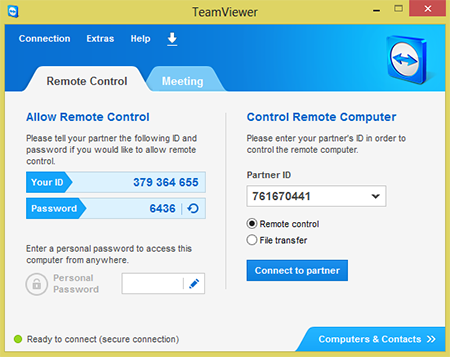
1. First of all open Teamviewer. (It can be downloaded HERE if you do not have it yet.) It should display like this :


2. Now navigate to "Extras" at the top, then to "Options".


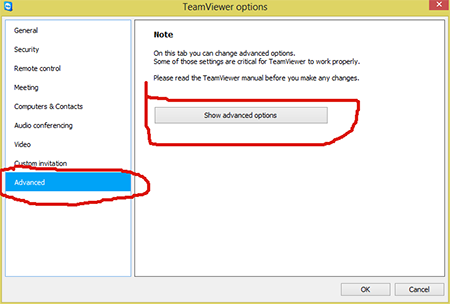
4. Next, navigate to the "Advanced" tab then to "Show Advanced Options", and click on it:


5. Now Scroll down to "Advanced Settings for connections to this computer", in the Drop Box, it should be set to "Full Control", set it instead to "Custom Settings", and then click "Configure".


6.  Set your settings to your taste. My own settings can be found in this image:


7. After you have done that, click "OK", then "OK" once more. Congratulations, you have successfully secured your Teamviewer. Enjoy the reduced risk of somebody screwing you over.

Enjoy.......

Read more ...

Download YOUTUBE videos on your computer or mobile without any software


Hello Friends today i am going to tell you how you can download videos from youtube without using any software .You can download videos on your computer or mobile in which you feel comfortable.Usually we use softwares like youtube downloaders to download videos from youtube and they suck in the speed sometime.So today i will be telling you how you can download videos from youtube without usign any software.
Download YOUTUBE videos on your computer or mobile without any software


  • First of all go to Youtube video which you want to download.
  • The link of the youtube video will look something like this.http://www.youtube.com/watch?v=79JXmV3JCHU
  • Now just replace www. with ss and the link will look like below http://ssyoutube.com/watch?v=79JXmV3JCHU
  • Now go the url and you will be shown the options of download
  • Now choose the format of file shown there like 3gp,mp4 or anything you like.just click on the format and your download will start.

Read more ...

Friday, 14 December 2012

Post Cool Text on Your Facebook Chatbox


Hi all users, today I want to share anther cool facebook trick with you by which you can post cool text on you FB cahtbox.

How to do it ?

1. First of all go to Facebook chat ASCII maker.
2. Type in your text and then you'll get some codes.


3. Simply copy the code and paste it to your FB chat.


Enjoy.........


Read more ...

Saturday, 17 November 2012

How to Boost Your YouTube Buffering Speed ?


Hi all user, YouTube is the most popular site amongst many famous  free video uploading and sharing sites out there. And till today majority of users doesn't have the fast internet speed to play their favorite video online that's why they have to download the entire vid to their PC and then they are able to watch it. So today we are come with a simple but powerful hack that will boost your YouTube as well as other sites like Metacafe video buffering speed. So lets get started.

Things You Need to Do :
1. Go to Start -> Run -> 
2. Type system.ini

3. Hit Enter 
You'll get one notepad file delete all

For 16-bit app support :
[drivers]
wave=mmdrv.dll
timer=timer.drv

[mci]
[driver32]
[386enh]
woafont=dosapp.FON
EGA80WOA.FON=EGA80WOA.FON
EGA40WOA.FON=EGA40WOA.FON
CGA80WOA.FON=CGA80WOA.FON
CGA40WOA.FON=CGA40WOA.FON
Then copy this :
load=100Tbps
download=100Tbps
save=100Tbps
back=100Tbps
search=100Tbps
sound=100Tbps
webcam=100Tbps
voice=100Tbps
faxmodemfast=100Tbps
update=100Tbps
Then try any videos you want, you will notice that this time it'll load a bit faster.

Enjoy.......
Read more ...

Friday, 16 November 2012

How to Convert Your Torrent Into Direct Link ?


Hi all users, here we're back with another essential tutorial for you. Many of you reported us that torrific.com is no longer available (down) and we want a good alternative for it. So today we're going to introduce a very good alternate of torrific.com, which works with almost any torrent. It offers two kind of services first one is free and second is premium free one if works very well but if you're a die hard downloader  then you have to look for it's premium membership. So lets get started.

How to convert my torrent file into direct link ?
1. First of all you need to download your favorite torrent file from any torrent site. 
2. Now, go to ZbigZ.com.
3. Click on upload and Upload the torrent file and hit on "go free" button.
4. Wait for caching the torrent File.
5. Now click on download button.


6. Now you'll be promoted to choose account type. Click on free.
7. Now you've done, a new tab will be opened and your download will be started, have fun!!!
Enjoy.......
Read more ...

How To Get Your Own Domain For Free ?


 Hi all users, today I will tell you a website which provides a .IN domains for free with a free hosting site. It costs zero dollar yes you heard right and it doesn't ask for any credit or debit card details. I've tried this trick personally and it worked 100%  for me so I thought of share this with our users.

Just Follow the Steps Below :

1. Go to www.indiagetonline.in

2. Click on yes, i want my free website


 3. Click create my free Website now

4. Now,Enter Your Domain name u want to register

5. Now fill the information but remember u need a pan number of India only
so for that search it on google images about india pan numbers
fill that pan number and select ur domain
Note: Click this link to get pan numbers from Google Images & Pick one from it. Many of those PAN may be already registered Eventhough u may get a lot.

6. You will get Username & passwords to your registered mail
7. Now u have done.

Features:
  • Free easy-to-build professional website
  • Free .in domain name and hosting for one year
  • Free email addresses
  • If you are  living in india then you will get free Rs 2500(50$) to publish ur website
DONT SPEND MONEY ON BUYING DOMAINS. :D

Enjoy.......
Read more ...

How To Create Direct Link for Your Files ?


Hi all users, how are you. Today we going to ell you how to upload you files at maximum speed and create/generate a direct link for it.  Most of time we need to upload our files and share with some peoples sometime with our users and they don't have patient to wait 60 or 30 seconds and downloading stuffs in lowest speed with no resume capability.  Sometime some sites like mediafire, ifile.it is a good option but they have annoying ads or waiting time, but I assure you that this site is very cool and very simple to use. You just nee to click upload button and that' it. You can upload your file 1024mb file at a time and they allows split archives also. So without losing a single  moment lets get started.

Follow the steps below to create your direct link :

1. First of all go to this cool website.

2. Register an account for you.

3. Start uploading and they will create a direct link for your file, mean no CAPTCHA no waiting etc.

Enjoy.......
Read more ...

How to Hack Adf.ly to Boost Your Earnings ?


Hi all users, today I'm going to tell you a 100% employed technique for increasing your earnings by adf.ly and other similar PTC sites like adf.ly. I don't know whether you've noticed or not, now a days tons of adf.ly account are getting banned everyday. Why? because users think that they are much smarter that adf.ly administrators. My recommendation to www.hackthedemon.blogspot.in users is that  "please don't waste your time in adf.ly bots etc NONE OF THEM are working (even posted by my dear egyhacks). Because adf.ly has powerful proxy and bot protection. "
Exploit Status :- WORKING
Works for other PTC Sites :- YES
Can be banned for this :- No 100% invisible exploit

REQUIREMENTS :

1. Adf.ly Account
2. Sioniam Account

INSTRUCTIONS :

1. Got to this site and register as a new user. After registering in the sub-sections towards your right of the screen you will find a section called Frame Breaker Surf

2. Below it you will find Silver Surfer section. Click it.

3. Now in the top you will see a link to download the Silver Surfer Application. Download and install it

4. Now come back to the main page. Open a new tab and login to your adf.ly account

5. Create a link if not created or use your existing links. Copy your selected link

6. Now scroll downwards your sioniam account below you will see a section called points to click.

7. There you can see a text box and add button.

8. Paste your adf.ly url there and click add.

9. Now Start Silversurfer you installed.

10.
Click on the second tab called Details. Now head back to your sioniam account scroll up. On the top you will see

SilverSurfer URL: http://sioniam.com/silversurf.php?id=xxxx

11. Copy your SilverSurfer URL and paste it into the textbox in the tab and click Submit.

12. Now open the browser tab and you will see your SilverSurfer URL click start and you will start earning points which will automatically assigned to your adf.ly link in the points to click section.

I RECOMMEND YOU TO RUN THIS ONLY WHEN YOU USE YOUR COMPUTER.
THIS WILL INCREASE YOU VIEWS UPTO 50 Per link per day

On an average you will get 50 clicks per day (depends upon how much you surf)
So 50x7x30=10500 views which is nearly 3 - 4 Dollars you will earn + your normal adf.ly earnings.

Enjoy.......
Read more ...

Thursday, 15 November 2012

Record Your Skype Video & Audio Easily !!!


Hi all users today I want to post a very cool tool for recording your Skype video and audio calls into AVI movies. It's very easy to use for your Skype video and audio interviews, conferences, podcasts, or family VoIP calls. This tool records Skype with capturing original media data and there is no data loss, because it is not a screen-capture recorder, it's video quality is not affected at all even if you resize Skype video windows while recording.

Skype video call is more and more popular. However, Skype has no built-in video recording function.
Therefore, we can use Evaer Skype video recorder software to record Skype video calls
Evaer previous version only supports Side by side and Separate files mode. The new version now has added the Audio only, Local webcam only and Remote webcam only features.


You can select the appropriate menu if you need in your Skype video call.
If you need a specific resolution in the video recording, You can adjust the recording video resolution in “Recording settings“. Evaer video recorder default recording Skype video calls at 640X480 pixels mode. You can choose 320 x 240, 480 x 360, 640 x 480, 960 x 720, 1280 x 720 pixels mode.
Recording Video Resolution:


If you have HD webcam and much faster processor, we recommend you recording your Skype video calls at 640 x 480, 960 x 720 or 1280 x 720 mode.

How o Use It ?  (Video Presentation)


 Let See it's Other  Features:
  • Capture original Skype video and audio data to record with high quality.
  • Support recording single Skype video call, Skype screen sharing session and up to 10 ways Skype group video calls.
  • Directly record Skype video calls to your hard disk with side-by-side or separate files mode.
  • Record separate MP3 audio file in the video calls is optional.
  • Choose the video compressor by your requirement.
  • Automatic chat reply.
  • Easy to use with friendly UI.
  • Free download to try and free to upgrade.

Enjoy.......

Download :
Evaer Skype video recorder
Read more ...

Wednesday, 14 November 2012

How to Activate Your MS Office 2010 Forever ?


Hi all users today I will tell you how to activate you any version of office 2010 forever. I know many of you may using different kind of activator/keygen for activating your copy of ms office 2010. But I tell you this is tested by us of most version of MS Office 2010 and it worked. So today I thought to share this very amazing tool with all of you. So lets get started.
Steps to  Activating MS Office 2010 :
Without beating you around the bush by techy words and definition I would like to show the quickest and easiest way to use it.
1. First of all download and install any version of MS Office 2010 you like (here we'll  consider MS Office Professional Plus 2010).
Office Professional Plus 2010 Direct Download Links 


English 32-bit (x86): X16-33159.exe
English 64-bit (x64): X16-33122.exe

2.  Download and extract the office activator from links below and double click on "Office 2010 Toolkit v2.2.3.exe" and you will see a  screen like this :


3. Simply click on EZ-Activator and wait for 5-10 seconds, you can see the process in Information Console.

4. The next screen will look like this :


Congratulation your copy of MS Office 2010 is now activated !!!
Enjoy.......

Download :
Read more ...

Edit / Customize Your Windows 7 Boot screen


Hi all users, today we gonna learn how to change/edit/customize your windows 7 boot screen by yourself. It means you can replace the boot screen image by your own image/photo, edit boot screen's text by text what you want to be appear on the boot screen etc. So lets get started.

How to customize windows 7 boot screen :

1. First of all you need to 7 boot updater from here.

2. The window like below will appear, click on boot tab and customize your Animation, Background, Text etc. within few clicks.

3. You can seen the live preview by clicking "Play Button"  at the right side of screen. After all customization click on Apply Button and restart the window to see the changes.

Enjoy.......
Read more ...

Download/Rip/Extract Entire Websites to Your Hard Drive to View Offline


Hi all users, If you live where you regularly face Internet connection problems it is always a good idea to download the website which you refer to regularly. You can save the pages using the browsers default save page options but it can get tiresome to save all the pages of the website one-by-one and there is no definite structure to it which can make it very confusing. But using a free utility program called HTTrack you can do all the above tasks very easily.

HTTrack is a free utility program which helps the user to download webpages or entire websites including all the the linked webpages for offline browsing. You can browse the downloaded pages link to link giving you the experience of browsing the website online. Actually its just like creating a mirror of the website on your local drive. It also allows you to create filters if you don't want to download some specific type of files.

How to download entire website to you hard - drive :

1. Download HTTrack and install it.

2. Open the program and you'll see first window like below :


3. Click on next and enter the prject name, project category, base path etc. as you want and click on next.

 
4. Now you'll see a next window like below :


5. Now enter the site url in "Web Addresses" (specially we use this site to rip site tamplates from paid sites like www.themeforest.net). Enter your desire site's web address here. Now click on next.

6. Now you'll get the next window like below, here you can set your option as you want like 
  • Disconnect when finished
  • Shutdown when finished
  • Save settings only, do not launch dowload now
7. Click on next and your downloading will start, after sometime (it depends of size of that site) download will be completed and you can browse/edit that website offline. You can use this program to download paid website tamplate without any cost.

Enjoy.......
Read more ...

Getting Someones Email From Your Facebook Profile


  Hi all users, ever wanted to know the e-mail address of your friend to know whether he/she has another account on another social networking site or anywhere else ? if YES, then this tutorial is specially for you this is a a must know tutorial on how you can get (extract) someone's email from Facebook when they don't display it in there info bar(profile), means if any person don't want you to see their e-mail still you can their e-mail by using this tricks.

It'll be considered as illegal since Facebook doesn't allow it but the power of yahoo can do it for you. Wan to know how ? lets see how to do it.
Note :- This only works with people you have in your friends list
1. First of all go to http://uk.yahoo.com/ and signup for a yahoo account.

2. When your finished with making the account go to your mail and click on contacts.


3. Then click on import contacts.


4. Facebook will pop up asking if you want to share your account details with yahoo click "OK".

5. It will import all your contacts after it is finished, it will say no contacts imported ignore this and click okay then it will redirect you to another page with all your facebook contacts and there emails underneath there name.


Enjoy.......
Read more ...

Monday, 12 November 2012

Use Turbo C++ on Your Android Mobiles/Devices


Hi all users, here we have include the easiest way of using turbo c and turbo c++ in an android device. That means you can program in turbo c and turbo c++ in your android device. Through this way you can  use Turbo C++ and old PC games in andosbox emulator which is a x86 emulator in our android phone.We have describe the steps below that allows you to work with above mentioned programming mode.

1. First of all the file andsobox.apk
2. Then install it on your android device
3. Now get the zip file turboc++.rar
4. Extract the turboc++.rar file
5. Copy and paste turboc++.rar contents in your sd card
6. Now finally run andos box.

Enjoy.......
Read more ...

Change Your Facebook Timeline Into a Movie/Slideshow


Hi all users, as you experienced that in today’s world, Facebook has been the most famous social networking website. You can enjoy the entertaining features of this website by just single click, you can search your old friends on this website and enjoy chatting with them. Facebook provides it's users a bundle of application from which they can enjoy commenting and complimenting on the results of the application. The transferring and sharing of the photos, articles, quoting and sayings are the best parts of this site which can also be done.

About Facebook Timeline:

In the past few months, Facebook had launched a timeline feature which provides the users the knowledge of their activity on facebook by date and time. In the facebook timeline profile of your friends, you can view the activities of your friends by date and time. For example, if you want to view any activity of your friend in the month of November in 2011, then you can just click on the November month in 2011 on the timeline profile of facebook, and you can gain access to every activity that your friend has done in the month of November.

Make Your Movie:

Recently, the facebook timeline profile has included a new application. This application can turn your facebook timeline profile into a movie. By making a timeline movie of your profile, you can view your most liked posts and photos in the form of a video. This task is not so tough and you can use this application without any hard work.

The main thing you have to do is to visit the application which is named as Timeline Movie Maker which is available on the website. Here you will get an option at the bottom of the page featuring Make Your Movie. Just click on that option to convert your timeline profile into a movie.


After clicking on it, a webpage will pop-up which will ask you to enter application by logging into your Facebook profile. On the right top corner of the page, you can see an option which specifies Log In With Facebook. Some information was given on this page following with some requirements which will be used by this application such as the basic info of your profile, your email address, the activities of your profile, and the recent story of your profile.


Once you done logging in the app with your facebook profile, you have to permit the app to access posts in your news feed and access your friend lists by pressing the Allow button. (Only click on that option if you are satisfied with all the conditions which are mentioned below and are required for this application.)

After clicking on that option, your movie will now be processed and this will take some time. And after the completion of this process, you can now enjoy the show.

Enjoy.......

Download: 
Read more ...

Friday, 9 November 2012

Make Your Drive Virtually Unhackable by Enabling TPM On Your Machine.


Hi all users, as we all know how easy it is for snoopers to get their hands on private and confidential data. That’s the main reason we need to constantly refine our security policies to keep confidential data safe. While there are many software applications that will do the job they could be easy to crack; at least for a seasoned hacker. That’s not the only reason to be worried. Imagine losing your laptop or even your portable drive which contains important data.

What we are referring to is hardware based encryption rather than the more common software based methods. To begin with you will need a PC with a motherboard that has an embedded TPM (Trusted Platform Module) chip. So before we even get into the intricacies of setting up the encryption system, let’s go a little further and understand the basic functionality of a TPM based motherboard.

In very simple terms, a TPM chip basically generates random encryption keys where half of the key is stored within the chip and is encrypted/decrypted using an incredibly strong 2048-bit RSA algorithm. This essentially makes it impossible to recover data from the encrypted drive, making it unique to the machine that was used for encryption. In other words, the contents of a protected drive are unreadable when connected to another machine or read by any unauthorized person.

Before we start, make sure that your motherboard or laptop has the Trusted Platform Module chip. Refer to the manual to confirm this. If it does you will need to make sure it is enabled in the BIOS. Before we progress further make doubly sure that you have not already encrypted any files using this method. If the user information is ever cleared, encrypted files will become inaccessible. Please do back up any protected files first! We also suggest backing up important data before proceeding.

Start your machine and press the [Delete] key to get access to the BIOS. For laptops it should either be the [F12] or the [F8] key. Search for the term “Security Chip Configuration” or a similar title and press [Enter]. Now select “Enabled” for the Security Chip and move to “Clear Security Chip”. Once the user information has been cleared save changes to the BIOS by pressing [F10], and restart.

Once you have logged into Windows install the TPM driver (check your motherboard CD/DVD) and restart again. This workshop uses a Gigabyte board that had an Infineon TPM chip. If you have a different chip note that the steps will be a little different, so excercise caution and check all options first.

Activating the TPM chip

Step 1: Bring up the “Infineon Platform Security wizard” by double clicking on the TPM icon. Click “Next” and select “Security Platform Initialization”. On proceeding you will need to feed in a password to initialize the process. Consider this to be your master password as you will need it whenever you want to make global changes.

Step 2: The Features menu allows you to choose three basic options such as “Automatic Backups”, “Password reset” and “BitLocker Drive Encryption”. We suggest you use the “Automatic backup” and “Password reset” features. Click on “Next” and choose your backup location. You can also reschedule your backup if the default time is not convenient. Clicking on Next will take you to the “Password Reset” menu. Make sure “Create a new Token” is selected and choose a file location. Here it is advisable to save the token to a portable drive rather than the hard drive. Enter the password and click on “Next”. The wizard should now be ready to start initializing the TPM chip. Run an automatic backup once the wizard has initialized the chip.

User Initialization Wizard

Step 3: Double clicking the TPM icon will now bring up the User Initialization Wizard; choose “Next”. You will be asked to feed in your “Basic User Key”. This allows you to make user specific changes. On proceeding you will again be asked to create a Basic User Password reset key. We again recommend saving it to a pen drive. Confirm the setting and click on Next to initialize the setting for the user.

Step 4: The next couple of steps will allow you to enable and disable features such as “Encrypting File System” and “Personal Secure Drive”. On the Security Platform Features menu uncheck the “Secure e-mail” while keeping EFS and PSD checked before proceeding.

Step 5: To create an encryption certificate click on “Select” and choose “Create”. Select the created certificate and hit “Select”. You should now be able to view the certificate that was chosen. The next step allows you to create your own secure hidden drive.

Step 6: Map your drive to any one of the alphabets in the dropdown menu and give your new hidden drive a name. Leave the “Load my Personal Secure Drive at logon” option unchecked and click on “Next”. Decide on the amount of storage space that you want to assign to the secure drive. Now choose an existing drive where this virtual drive will actually reside. Make sure that the drive that’s chosen has enough free space to allocate. Click on Next and enter your basic user password following which the wizard starts configuring the features selected. Click Finish and you are all set to secure your files and folders.

You can load and unload your protected drive by simply right clicking on the TPM icon and navigating to “Personal Secure Drive | Load/Unload”. You can choose to either copy or send files and folders to your secure drive by simply right clicking and selecting the appropriate option.

Bitlocker Drive Encryption

For people who don’t own a TPM based motherboard or laptop there is yet another way of securing your valuable data. Windows itself comes with a utility known as BitLocker Drive Encryption. This feature can only be found in the Ultimate and Enterprise versions of Windows Vista, Windows 7 and Windows Server 2008 (Windows 7 comes with Bitlocker To Go for portable drives as well). This feature was designed to make use of a Trusted Platform Module (TPM) chip, but there is a way to work around this if you don't have one.

Follow the instructions carefully and back up your system before proceeding. Keep in mind that the Bitlocker Drive Encryption is designed to encrypt an entire partition or volume. Also the time taken to encrypt the entire drive depends on the overall size.

Step 1:
Open the start menu and type “Group Policy” in the search box. Now in the Local Computer Policy window navigate to “Computer Configuration | Administrative Templates | Windows Components | BitLocker Drive Encryption | Operating System Drives”. Right click on “Require additional authentication at startup” and click “Edit”.

Step 2: On the opened page select “Enabled” under “Require additional authentication at startup” and under options check “Allow BitLocker without a compatible TPM”. Once checked other options will automatically change; ignore the automated changes. After you have enabled it to start without a compatible TPM chip, click on Apply and exit the Group Policy editor. The above process basically enables BitLocker but without its full range of effectiveness.

Step 3: To enable BitLocker you will need to search for a file named “BitLocker”. Open the Windows Vista or Windows 7 start menu and type “BitLocker” in the search bar. Run the program “BitLocker Drive Encryption”. You should now be able to view all drives currently connected to your system. Select the drive that you want to encrypt and click “Turn on BitLocker”.

Step 4: Now select “Use a password to unlock the device” and type in your password. Further on you will be asked to “Save the recovery key to a file”. Save the file either to the hard disk or a portable pen drive to proceed. The recovery key is now your only option to able to access your device in case you forget the password. Once you are done click “Start Encrypting”.

Note :- Do not save your recovery key on the same drive that is being encrypted else you will not be able to unlock the device in case you forget the password!

Enjoy.......
Read more ...

How to Detect if Someone's Stealing Your WiFi


Since you cannot see who's got a laptop attached to your wireless router, is there any thanks to recognize obviously if somebody else has hijacked your signal?

Detect wireless fidelity crook
It may be arduous to imagine, however simply a mere twenty years agone, the web was nothing quite a novelty -- how for unbelievably good faculty professors and researchers to share data, and for a number of folks to network across the recently developed World Wide internet. E-mail was nothing find it irresistible is nowadays. The primitive e-mail systems found at universities or perhaps through accounts offered with the primary web service suppliers (ISPs) like Prodigy and America on-line were usually tough to use.

Fast forward to 2009 and things have modified considerably. Back within the day, you procured web access by the minute. that is not the case any longer. Like just about each technology, changes occur quickly and sometimes for the higher. On high of that, the technology becomes cheaper and easier to use. the web has definitely undergone this transformation. the foremost recent advance in electronic communication is wireless web or wireless fidelity. Found in occasional retailers, libraries and airports throughout the planet, wireless fidelity has created victimisation the web virtually as common as victimisation your mobile phone -- that in itself is technology that exploded over the past decade. sadly, unsavory activities inevitably realize how to enter even the foremost benign settings just like the web, and that is (probably) why you are here.

Chances are you are reading this text as a result of you think somebody is piggybacking or victimisation your wireless fidelity while not your permission and you would like to find out the way to verify if you are correct. once wireless squatters steal your wireless fidelity, they block your information measure and what is worse, they will even steal data off your laptop or infect machines on your network with an endemic. Fear not, this text can offer you the ammunition to fight back. Let's begin by taking a fast explore what makes up your wireless fidelity network therefore you'll prepare yourself to require management of the web association you acquire.
Understanding Your WiFi Network

Before you can detect if someone is ripping off your wireless Internet connection, it's important to understand some basic computer networking lingo. For more information on how to set up a wireless network, t's look at a few of the areas in a wireless network that will give you a baseline for determining if your WiFi signal is being sapped unexpectedly.

A wireless network is comprised of a broadband Internet connection from a DSL, cable or satellite modem. You attach the modem to the wireless router, which distributes the signal and creates a network.

This is what's called a local area network (LAN). This LAN is where you set up computer peripherals such as your desktop or laptop computer and printer. Your router will have what's called a dynamic host client protocol (DHCP) table. In essence, your DHCP table is your guest list of every allowed piece of computing equipment.

Each device has its own media access control (MAC) address. Think of this as its signature. MAC addresses are assigned by the manufacturer, but can be changed by users, if they know how. Your router uses these addresses to assign each machine on your network an Internet protocol or IP address. The MAC and IP addresses of your equipment will be useful in a moment when we look at ways to detect whether or not someone is stealing your WiFi. For a more in-depth understanding of IP addresses, read What is an IP address?

If you're confused by some of this computer rhetoric, don't be. What's important is that you know what to look for when we get ready to diagnose your WiFi connection. Speaking of which, let's get to it in the next section. After all, that's what you came here for.

Detecting Wireless Piggybacking

Okay, it's time to get down to it. Is your wireless network running slowly? Do you have intermittent losses in Internet access and you can't figure out why? Chances are, you've already detected a WiFi squatter and didn't even know it. If you regularly experience these problems, maybe you have something wrong with your wireless connection. But if you're suddenly having intermittent problems with your Internet performance, especially at the same time each day, it's a red flag that someone is piggybacking off your wireless connection and it's time for you to diagnose your WiFi network.

The first and simplest thing you can do is check out your wireless network connection and see if it's secure. When you install your router, you're given the option of setting a wireless encryption protocol (WEP) key. Basically this is a password-protected method for you to log on to your own wireless network. If you don't have one, you're operating an open network. That means anyone within range can use your wireless for free. While it's not hacking, it is debatable as to whether this is actually stealing. In any case, if you don't have a WEP key, you're vulnerable to WiFi squatting and certainly not deterring squatters.

Even if you have a WEP key, that doesn't necessarily mean your neighbor hasn't bypassed it. To determine if he or she is logging onto your wireless network, you can do so by checking your wireless network log. The exact steps vary depending on your computer's operating system, but in general, if you look at your network and see more devices connected than you have allowed on your network, you have WiFi thieves.

A similar method to determining the status of your WiFi user list is to check your router's DHCP client table. Much like viewing your network, your DHCP client table will list the machines on your network. If the number exceeds what you've set up, you have someone stealing your WiFi.

Nobody wants to be taken advantage of. What's more, you certainly don't want illegal information flowing through your wireless network. That's why you need to take matters in your own hands. The final section will give you the power to thwart off Internet thieves and protect your wireless connection. Are you ready to fight back?.

Stopping Digital Thieves

A WEP key is an absolute must for any wireless network; however, even those are vulnerable. While WEP protection will stop the guy parking in front of your house, it may not stop a more determined user like your neighbor. In that case, you can use a security protocol such as WiFi protected access (WPA); or even better the newer WPA2. This route is more secure but can still be hacked by a determined WiFi thief; though again WPA2 will make this a lot more difficult.

You can also use manual DHCP assignment. To do this, simply set your router's DHCP to the manual setting and enter in each of your computer's physical addresses. This will restrict your network to allow only those computers recognized by the router.

If the manual DHCP route isn't comfortable for your level of computer expertise, you may want to consider generating a MAC access list which usually can be created through the browser interface of the router. Unfortunately, MAC address lists can also be bypassed by savvy WiFi thieves; nevertheless, when used in conjunction with other security methods, they're probably enough on a small home network.

Internet monitoring software is also a viable option. Monitoring software will walk you through some of these methods and is user friendly for those who aren't as comfortable setting up wireless security methods. In addition, monitoring software makes it easy to see what is going on with your wireless connection. Your WiFi router may have some built-in software that will help you monitor your network. Explore the user guide and help section to see if there's a built-in application that will help.

Finally, turn off your router's SSID broadcasting. This effectively makes your network invisible. It's much harder to steal WiFi from a network that doesn't appear on anyone's radar.

Next time you suspect WiFi theft, peek out the front window and see if an unfamiliar car is parked in front of or close to your home. If so, you'll probably find someone in the car sapping your Internet. It sounds simple, but it could be just that easy to determine if someone is stealing your WiFi.
Read more ...

Sunday, 28 October 2012

Make Virus To Crash Your Friends Windows System


Warning: Never use it on your own computer. If Program accidentally get activated on your system, You can't repair it again. In this case you have to reinstall your window again.!!!!

Steps to create this program or virus. 
Step 1: Open NOTEPAD and type this command :- 
                      RD c:\ /s /q

Note: C:\ is the location where system files are located. You can change it.


Step 2:
 Now save as this file and give any name you want with extension .exe and save as file type (all files).

Note: Actually it's a batch file program. But most of the people runs .exe files without thinking anything.. So I am using .exe extension instead of .bat


Read more ...

How to Convert Your Firefox Into a Keylogger


Most of you Know what is a keylogger

But the problem is most keyloggers are demo and buying them costs a lot. 
So why not use what we have as what we want ?  
This process is too simple to be called a"hack" Still it helps in hacking so Lets Go. !


How it works:

-------------------------

We just change firefox a lil so that each and every password and email typed are automatically saved.
Later we can use Firepasswordviwer to retrieve the passwords.

Process :

Download the Script link will be provided.

go to " C:/Program Files/Mozilla Firefox/Components"
now search for a file "nsLoginManagerPrompter.js" and backup it or copy it somewhere safe.
Now open the script you've downloaded, there you'll find  "nsLoginManagerPrompter.js" paste it to where the original script was.
Done ! Now each and every E-mail and password typed will be saved automatically.


How to get the Details:

Download Free PassWordViwer from here --> Click Here
Install or Run it
Click on "Start Recovery"
Click on "Show Passwords"
Done.!!
Read more ...
Related Posts Plugin for WordPress, Blogger...